

Plex & Jellyfin migration
Migrate from Plex or Jellyfin.
Import movies, TV and music into Pixel Brite Media Server with artwork, watch history, ratings and manual playlists. Keep the movie and TV identities selected in Plex or Jellyfin, without identifying every file again.
Media Server and the web app are available now. Apple app beta availability
Keep movie and TV matches.
Movie and TV matches come from the source library. Source episode numbering stays intact, including episodes that share a file.
Import viewing history.
Choose a source profile to import its viewing history, ratings, favorites and supported manual playlists into the signed-in Pixel Brite account.
Keep the source unchanged.
The importer reads a snapshot of the database and retains available artwork. The source database and media files stay unchanged.
Before importing.
Install Pixel Brite Media Server, open its web app and sign in as the owner. Make the Plex or Jellyfin data folder and the selected media folders readable on that computer. Importing adds a catalog and folder connections; it does not copy the movie, episode or music files.
On the same computer, detected databases and their original media paths make this straightforward. On another computer or in a container, mount the data folder and media first, then use the paths visible inside the Pixel Brite server.
The importer, step by step
Import in four steps.
Find the source library.
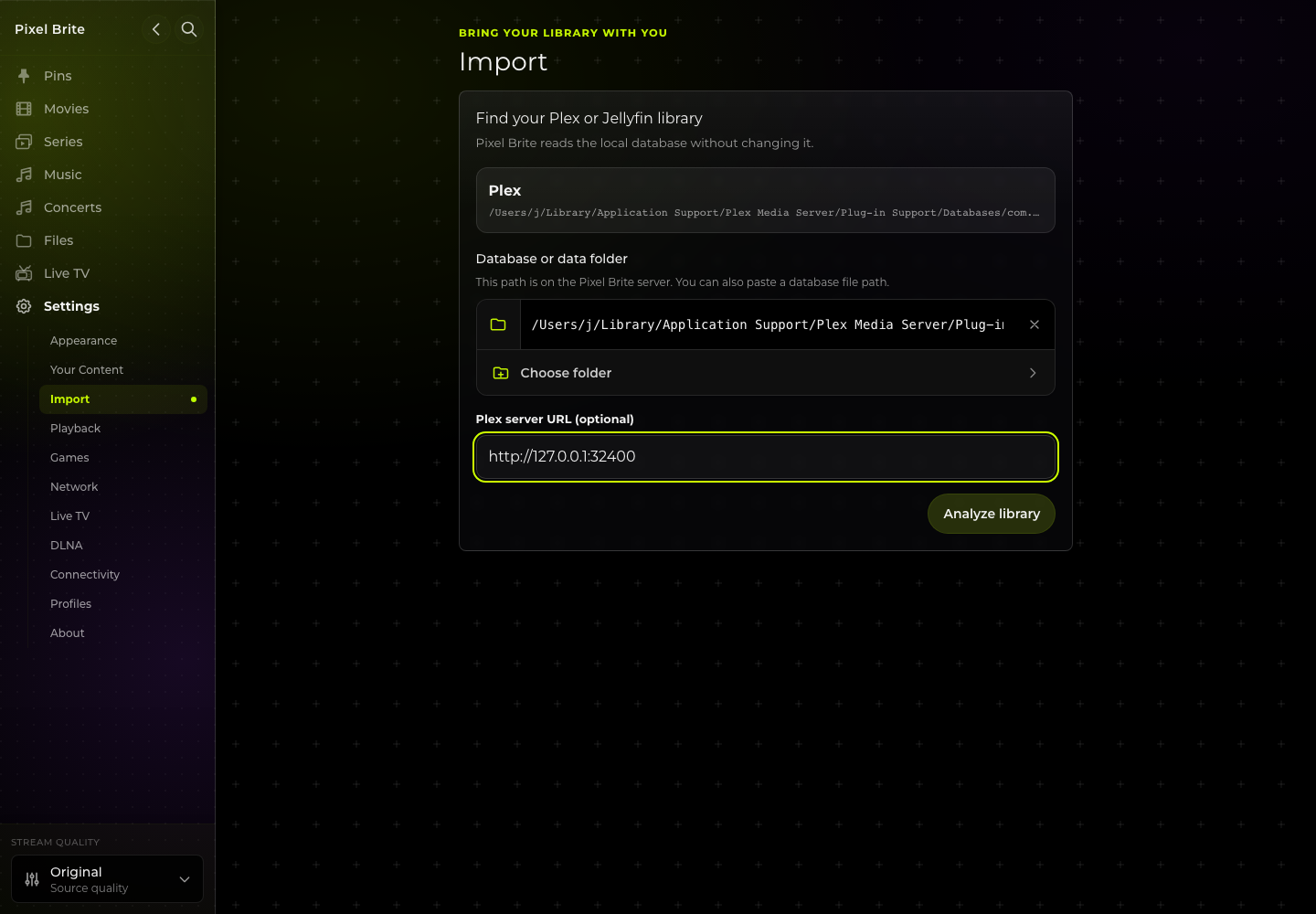
Open Settings → Import. Select a detected Plex or Jellyfin database, or use Choose folder to select its data folder. A database file path works too. Choose Analyze library.
For Plex, keep Plex running so the importer can read its existing movie and TV identities. The local Plex server is detected automatically when needed. Use Plex server URL when Plex runs at a different address, including outside a container.
Choose libraries and folder paths.
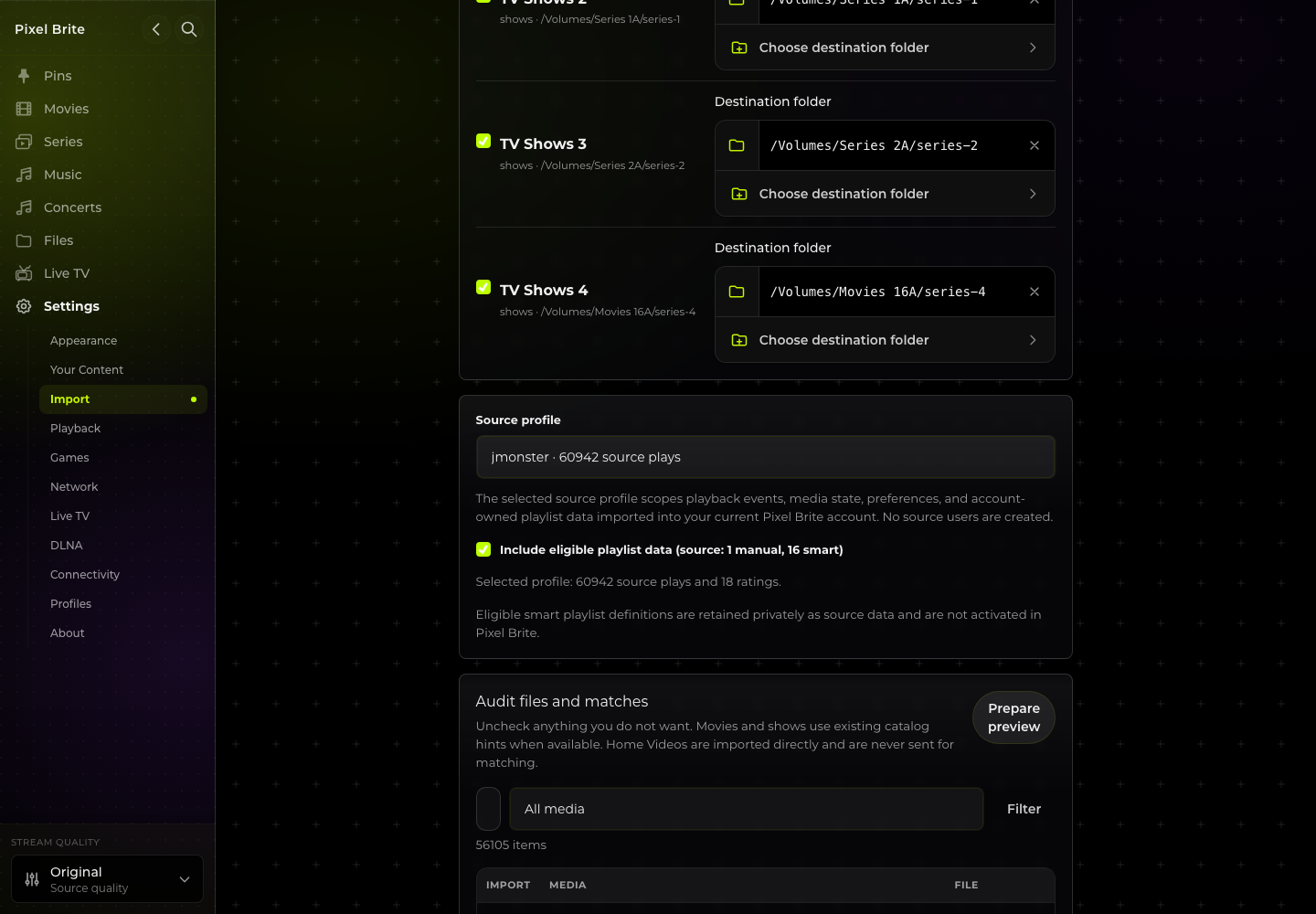
Select the libraries to bring across. Keep each Destination folder unchanged when the media remains at its detected path. If it is mounted elsewhere, choose its path on the Pixel Brite server. The importer maps the files beneath each selected root.
Choose the source profile.
Select the Plex or Jellyfin profile whose personal data should be imported. Its data goes into the Pixel Brite account currently signed in. Choose No profile to skip personal state and account-owned playlists. Source accounts are not created automatically.
Preview, then commit.
Choose Prepare preview. Review the selected libraries, catalog details, excluded items and warnings, then choose Commit import. Read the completion summary for anything that needs attention.
Re-importing the same source reuses the imported records and avoids duplicating its viewing events and retained artwork.
Migration questions.
Where is the database?
For Plex, choose the Plex Media Server data folder or its Plug-in Support/Databases/com.plexapp.plugins.library.db file. For Jellyfin, choose its data folder or jellyfin.db. These paths belong to the server computer, even when the web app is open on a phone or another computer.
Which playlists transfer?
The importer supports up to 100 manual playlists with up to 1,000 eligible items each. A list over either limit produces a warning instead of a partial playlist. Smart playlist rules do not run in Pixel Brite.
Does importing recreate every account?
The selected source profile’s data is imported into the signed-in Pixel Brite account. Other source users are not created. Use Pixel Brite’s profile and library-access controls to set up access for other people.
Explore ProfilesWhat happens when catalog details are unavailable?
The source information stays attached to the import. Pixel Brite does not substitute a different movie or TV identity based on the filename. Review the preview and completion warnings for items that need attention.